Image privacy

Before uploading, is it safe to give images to AI?

An ai image to image tool needs access to your source photo to transform it, but that does not make every photo suitable for upload. Check what the image reveals, who owns it, and what the tool says it does with uploads before you proceed.

Creative image transformation examples

how it used to be done

With offline editing, a source photo could stay on your device. Sending that same photo to an ai image to image service changes who may handle the file.

An upload cannot stay entirely local

If an ai image to image service processes files remotely, the image leaves your device. A polished result does not tell you where the source was stored or for how long.

Workaround

Keep sensitive work in a verified local workflow, or use a non-sensitive substitute image.

Cropping cannot undo an earlier upload

Removing a name or face after sending the original does not remove that detail from the copy already submitted.

Workaround

Make and inspect a redacted copy before opening the upload control.

A visual result cannot prove deletion

An ai image to image output shows what was generated, not whether the input remains in logs, backups, or a provider's systems.

Workaround

Read the provider's retention and deletion terms; do not upload if they are unclear.

how it is done today

A privacy check belongs before the first upload, not after the ai image to image result appears.

You must have

Without every one of these the route does not run.

  • Use a source image you own or have permission to submit.

    Permission to view a photo is not necessarily permission to send it to a third-party service.

  • Remove visible names, addresses, IDs, screens, and location clues.

    Inspect the background as well as the main subject.

  • Check the service's current privacy terms for retention, training use, sharing, and deletion.

    Do not infer these practices from a free or anonymous interface.

Nice to have

Skip any of these and the route still works — they only make it faster.

  • Keep an unedited copy of the original on your own device.

    This makes it easier to compare the result without resubmitting the source.

  • Start with a low-sensitivity test image.

    Test the ai image to image workflow before considering any personal photo.

For the broader safety discussion and the basics of image transformation, these related pages provide different starting points.

what changed

Convenience does not replace consent

An ai image to image workflow can turn a source photo into a new visual without the manual editing once required. The privacy trade-off is that the source may now pass through a service whose handling practices you need to evaluate. A prompt or finished image cannot answer whether a provider retains uploads or uses them for model training.

Ai Image To Image encourages a simple boundary: submit only images you are comfortable sharing under the provider's stated terms. For client files, children's photos, medical images, or documents, get appropriate permission and consider an offline method instead. We do not treat an unverified promise about automatic deletion as a safety guarantee.
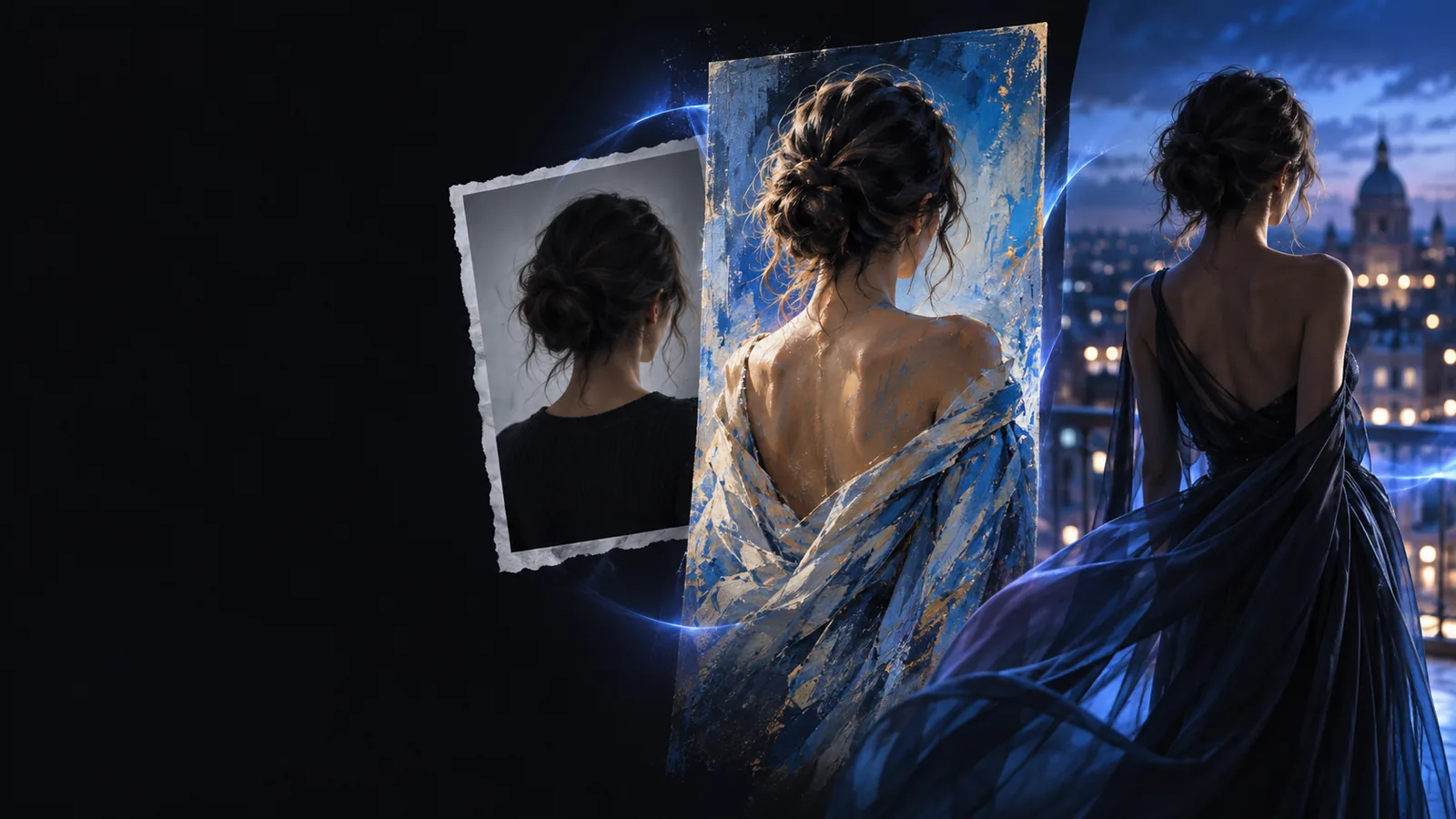
  • Inspect the image
  • Read the terms
  • Confirm consent

who switched

People moving from local editing to an ai image to image workflow can adjust what they submit without abandoning the creative task.

  1. 1

    The casual creator uses a test photo

    For a style experiment, begin with a landscape, object, or other image without identifiable people. Check the result and the service's privacy terms before trying a personal photo.

  2. 2

    The portrait editor asks first

    A recognizable face belongs to a person, even when the requested ai image to image change seems harmless. Get that person's consent, then remove unnecessary background details before submitting the file.

  3. 3

    The professional keeps a stricter boundary

    For confidential client work, check the agreement and the provider's data terms before any upload. If permission or handling rules are uncertain, use an approved local workflow instead.

Start with an image you can safely share

Choose a non-sensitive source, inspect it for hidden details, and read the receiving service's privacy terms. If those checks do not give you enough confidence, keep the image offline.

Explore image editing
  • Check the entire frame
  • Confirm permission
  • Review data handling

its own FAQ

It depends on the image and the service's data practices. A non-sensitive image you have permission to use presents different risks from an ID, private document, or recognizable photo of someone who has not consented. Read the provider's current privacy terms before uploading.

Ask the people shown for permission, particularly if they are recognizable or the image is private. Crop out bystanders and details that are not needed for the edit. If you cannot get appropriate consent, choose another image.

Not necessarily. Deleting a result from your device does not establish what happened to a source file held by a provider. Check that service's retention and deletion terms rather than assuming both files are removed together.

Yes: create a separate copy and remove names, documents, faces, and revealing background details before uploading. Check the edited copy at full size, including reflections and screens. Redaction reduces exposed information but does not replace reviewing the service's privacy practices.

Start creating
Start creating