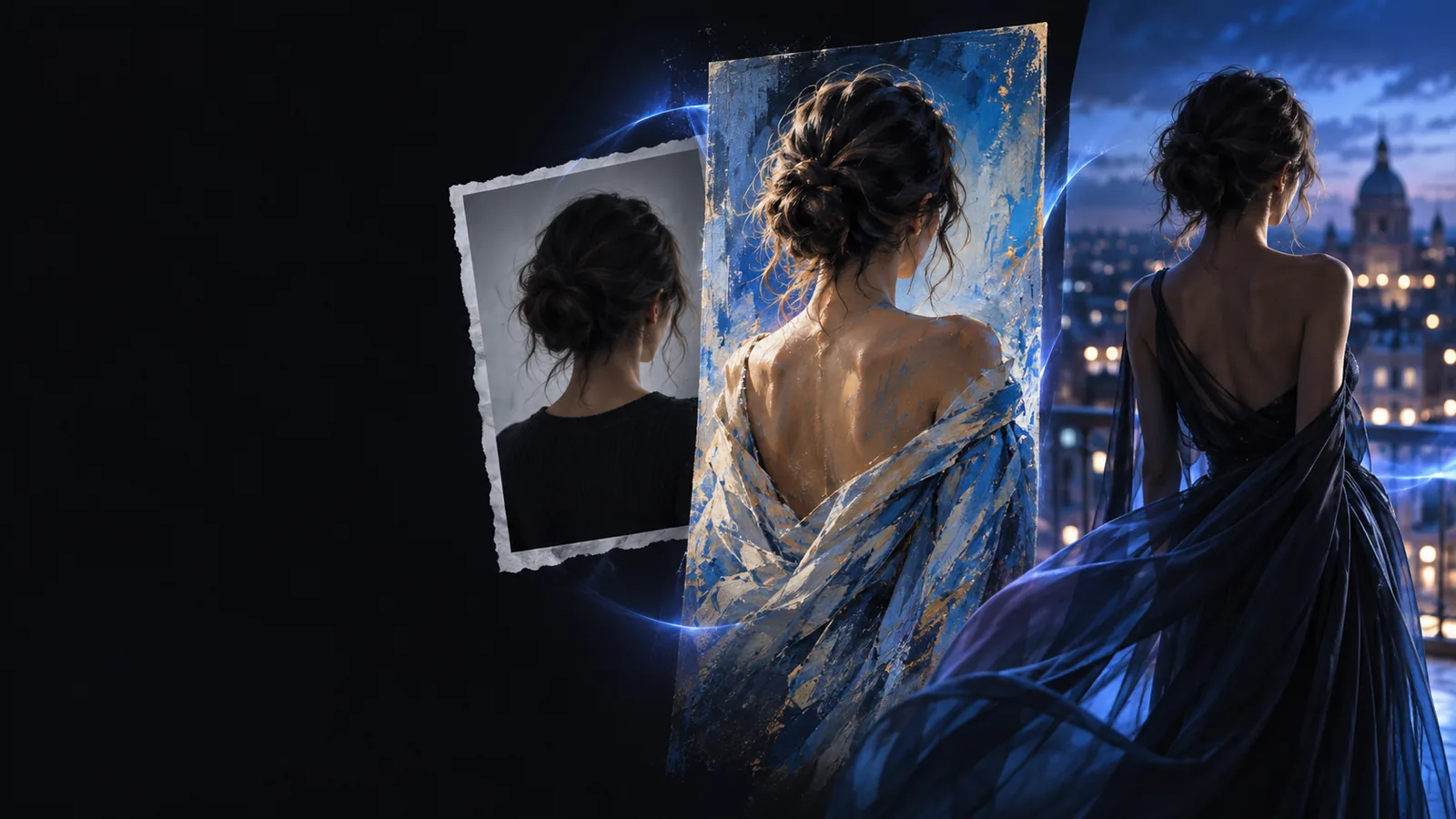
Workflow comparison

Choosing ai image to image vs photoshop for your workflow

The ai image to image vs photoshop decision depends on what must stay fixed. Use a source-guided generator to explore visual directions; use Photoshop when specific pixels, text, or production details need deliberate control.

Creative image variations illustrating a source-guided editing workflow

The short verdict on each option

Both can change an existing image, but they make different promises about the result.

Ai Image To Image

1

Pick it to discover a new look quickly, then inspect the output before treating it as final.

  • A source image and written direction can produce a fresh composition or style without building a layer stack.
  • Useful for comparing moods, backgrounds, lighting ideas, and stylized treatments.
  • Makes it easy to test a direction before spending time on detailed manual edits.
  • Small details may shift even when the prompt asks to preserve them.
  • Exact typography, product markings, and object boundaries need careful checking.
  • Repeating an identical edit across images is less predictable than a controlled editing process.

Photoshop

2

Pick it when the brief defines what must change and what must remain untouched.

  • Selections, masks, layers, and adjustment controls support targeted changes.
  • Better suited to exact text placement, compositing, and revisable production files.
  • A saved layered document makes individual decisions easier to inspect and revise.
  • Exploring several radically different concepts can require more hands-on setup.
  • Good masking, retouching, and compositing take practice.
  • Manual changes can be slow when the visual direction is still undecided.

Dimension by dimension

Read the table against your actual brief. A tool that wins at exploration may lose when the same edit must be delivered precisely.

Ai Image To Image
Photoshop

Starting point

Ai Image To Image

An existing image plus a description of the intended change.

Photoshop

An existing image opened for direct, manual editing.

Creative exploration

Ai Image To Image

Generate alternate looks and evaluate the most promising results.

Photoshop

Build alternatives through edits, composites, or Photoshop's available generative features.

Precise local changes

Ai Image To Image

A prompt can request a local change, but nearby details may also move.

Photoshop

Selections and masks define which areas receive an edit.

Text and logos

Ai Image To Image

Check every letter and mark; generated details may not reproduce faithfully.

Photoshop

Place and revise supplied text and artwork directly.

Composition

Ai Image To Image

Useful when the framing itself can be reinterpreted.

Photoshop

Useful when placement and proportions must follow a specific layout.

Revision handoff

Ai Image To Image

Keep the source, prompt, and chosen output to explain the direction.

Photoshop

Keep editable layers, masks, and source assets for targeted revisions.

Consistency across a set

Ai Image To Image

Compare each output; repeated prompts do not guarantee matching details.

Photoshop

Reusable adjustments and deliberate placement help standardize a series.

Best deliverable

Ai Image To Image

A concept, stylistic variation, or starting image for further work.

Photoshop

A closely specified, editable final image.

Who each suits

The deciding question is whether you are choosing a direction or executing a settled one.

Choose this when

You have a reference photo but no agreed visual direction.

Start with ai image to image.

Ask for a few distinct treatments, compare what works, and select a direction before refining. This suits mood boards, editorial concepts, and early background experiments; it does not make every generated detail safe to publish unchanged.

Choose this when

A client has approved the layout and requires exact changes.

Work in Photoshop.

Use selections, masks, and layers to change the requested area while retaining the parts already approved. This matters for product labels, campaign text, matching crops, and work that another editor must revise later.

Choose this when

The concept is open, but the final asset has strict requirements.

Use both in sequence.

Let ai image to image suggest a look, then bring a selected result into Photoshop to correct details, place real typography, and prepare the final composition. Keep the original nearby so you can compare anything the generation changed unintentionally.

Migration path

To switch without losing work, save your original, try one clearly described change, and compare the output at full size. Carry forward only the result you can verify.

Try a first pass before rebuilding your process

Test one visual direction

Choose an image you can use, describe one visible change, and compare the result with your original. If the direction works, refine the details in the editor your final brief demands. Keep source and output separate so you can return to the untouched image.

Try image transformation
  • Start with a copy of your source image.
  • Describe the change and what should stay recognizable.
  • Inspect important details before using the result.

Comparison FAQ

It can be better for finding fresh interpretations of an existing image when the visual direction is still open. Photoshop is generally a better fit for precise, editable changes to a defined final asset. The better choice depends on what your brief lets you change.

It can supply concepts or useful starting images, but a generated output may change details you intended to keep. If a deliverable requires exact text, controlled placement, or a revisable layered file, plan for a dedicated editing stage. Review the result against the original rather than assuming the prompt preserved everything.

Photoshop includes generative editing features alongside its manual selection, masking, and layer tools. That makes this less a choice between AI and no AI than a choice between a source-guided generation workflow and a more controlled editing environment. Available features can vary by version.

Use ai image to image when you want to explore several background styles and can accept some changes elsewhere in the picture. Use Photoshop when the subject edges, placement, and surrounding details must stay under direct control. For a demanding final asset, explore a look first and then refine the composite.

Yes. Save the original and the selected generated image as separate files, then bring the result into your editing workflow for comparison and cleanup. Check licensing and permission for your input image, and inspect the output before placing text or preparing a final deliverable.

Start creating
Start creating