Creative workflow

Try ai image to image for photoshop projects

Use ai image to image for photoshop when you want to explore a new look without rebuilding your source image by hand. Generate a visual draft, then use Photoshop for the edits that need deliberate control.

Review the result before using it
Creative image transformation shown as a starting image and a restyled result

The audience's existing pipeline

Different Photoshop projects call for different drafts. Start with the image you already have and decide what must remain recognizable.

Product photographer

You have a clean product photo but need to test settings before committing to a composite. Keep the packaging legible and assess whether the generated lighting suits the original.

For targeted changes rather than a full scene variation, image to image ai editor explains how to scope an edit before refining it in Photoshop.

image to image ai editor
Portrait retoucher

You want alternate backgrounds or color moods while keeping the subject recognizable. Compare drafts at normal viewing size before inspecting the hairline and facial details.

When a believable finish matters, image to image ai realistic covers what to check before taking a portrait into a retouching pass.

image to image ai realistic

Art director

You need several compositions to discuss with a team, but the final layout will still need type, cropping, and brand-specific adjustments.

Browse ai image to image examples online for visual directions you can evaluate before building the final Photoshop file.

ai image to image examples online

Where we slot in

Ai Image To Image is a draft-generation step, not a replacement for layer-based editing. The table separates exploration from finishing.

Image-to-image draft
Photoshop finish

Starting point

Image-to-image draft

An existing image plus a description of the desired change

Photoshop finish

A selected draft and the original source files

Best use

Image-to-image draft

Explore composition, setting, lighting, or style

Photoshop finish

Resolve the chosen composition with controlled edits

Variation

Image-to-image draft

Produce alternatives to compare

Photoshop finish

Commit to and refine a selected direction

Text and logos

Image-to-image draft

Treat generated lettering and marks as provisional

Photoshop finish

Replace them with the approved artwork

Fine boundaries

Image-to-image draft

Inspect hands, hair, edges, and product contours

Photoshop finish

Mask, repair, or redraw problem areas

Final delivery

Image-to-image draft

A visual reference or draft image

Photoshop finish

An edited file prepared to the project's requirements

Before/after

The useful comparison is not simply original versus generated. Check whether the draft gives you a workable starting point for the final edit.

Change the setting, preserve the product

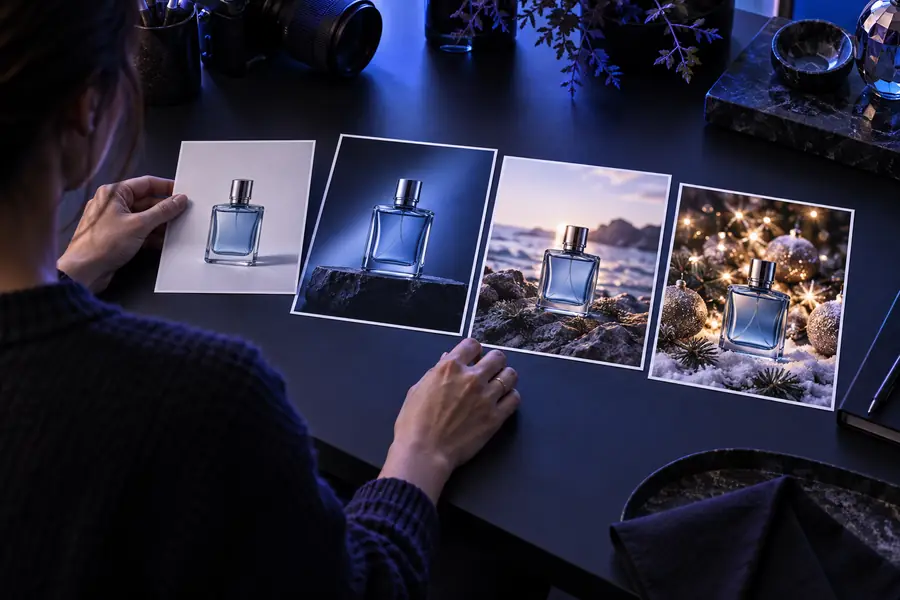
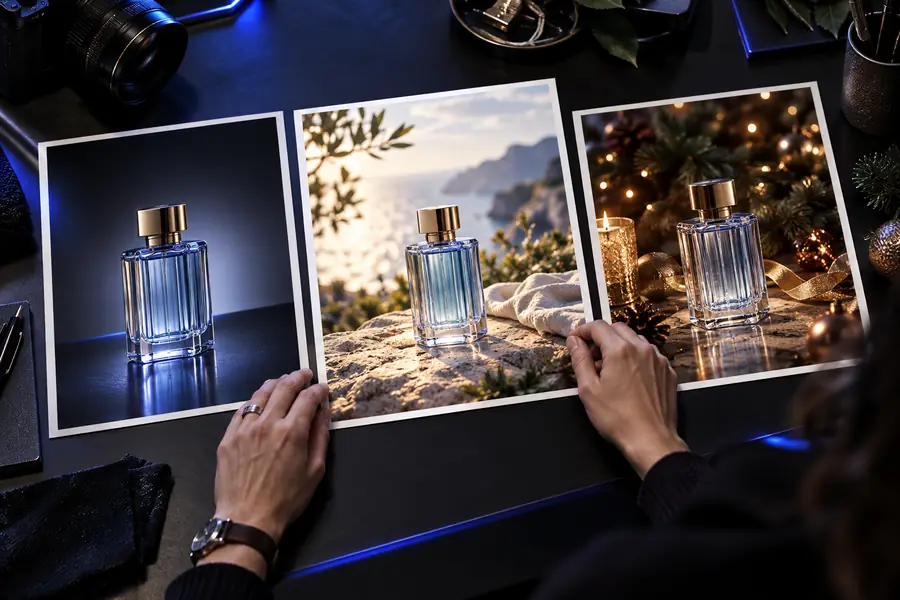
Before: a product photographed against a plain backdrop. After: a draft with a more expressive environment. Compare silhouette, perspective, label placement, and contact shadow before choosing a version to finish.

Retain the original photo for accurate packaging details.
Use the draft as a guide for background and lighting decisions.
Product imagery shown in contrasting visual treatments

Test atmosphere without losing identity

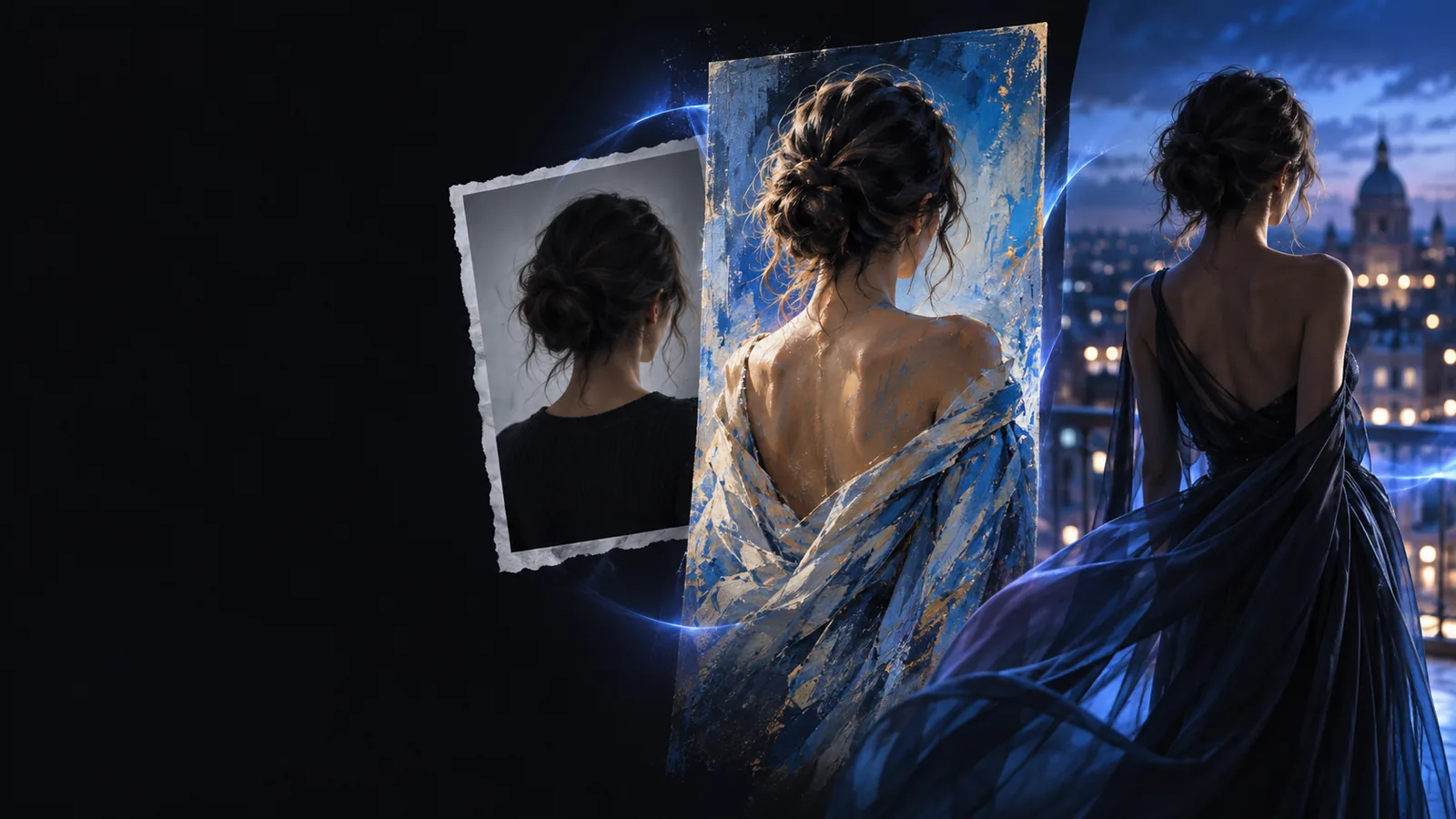
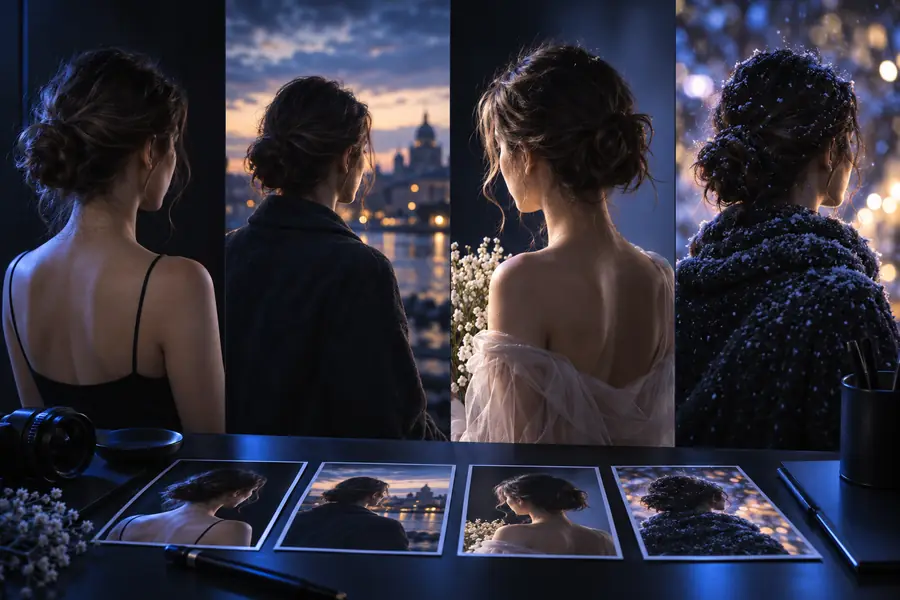
Before: a usable portrait with a setting that does not fit the brief. After: a different mood or location. Look closely at facial structure and hair before moving to retouching.

Reject variations that alter identifying features.
Check the transition between the subject and new background.
Portrait comparison showing different image treatments

Explore a new visual direction

Before: a landscape that has the right composition but not the desired mood. After: a draft with altered atmosphere. Evaluate the horizon, repeated textures, and light direction before using it as a reference.

Keep the source available for details the draft loses.
Match any later additions to the chosen light direction.
Landscape imagery compared across visual treatments

Deliverable spec

Treat the generated image as one input to the handoff. Decide what the Photoshop file must contain before you begin the final pass.

    1. Product

      Product scene draft

      Aim for a usable setting and lighting reference, not finished packaging. Bring the original product photograph into the edit when exact labels and geometry matter.

      1. Describe the setting while asking to preserve the product shape.
      2. Choose a draft with a plausible angle and shadow.
      3. Restore approved product artwork and inspect the composite in Photoshop.
      Draft a product scene
    2. Portrait

      Portrait background draft

      Use the result to judge mood and placement. Make the final handoff dependent on a careful identity check and a clean subject boundary.

      1. Request a new environment while retaining the subject's features.
      2. Compare facial details against the source photograph.
      3. Refine hair, edges, color, and background in Photoshop.
      Draft a portrait setting
    3. Campaign

      Campaign mood draft

      Generate a direction for a layout, then leave room for typography and brand elements to be placed intentionally in the final file.

      1. Describe the visual mood and the area needed for copy.
      2. Select a draft with a clear focal point.
      3. Add approved text and graphic elements in Photoshop.
      Draft a campaign look

    A repeatable handoff

    1. 1

      Prepare the source

      Choose the clearest available image. Note the features that must stay intact, such as a face, product outline, or camera angle.

    2. 2

      Explore a direction

      Describe the change you want and review each image to image result against the source. Keep a draft only if it supports the intended edit.

    3. 3

      Finish with control

      Bring your chosen draft and original assets into Photoshop. Correct details, place approved artwork, and check the file against the delivery brief.

    Take a draft into your edit

    Start with a visual direction you can evaluate

    An image to image draft can help you choose a setting or mood before detailed Photoshop work begins. Keep your source file close, inspect the result, and finish the parts that require precision yourself.

    Generate a draft
    • Start from an existing image
    • Compare the result with your source
    • Finish approved details in Photoshop

    Scenario FAQ

    Yes. Use it as a visual draft or an element to refine alongside your original assets. Check the result for altered details before treating it as part of a final deliverable.

    No. Image to image is useful for exploring a look, while Photoshop remains the place for deliberate masking, retouching, typography, and file preparation. The two steps serve different purposes in the same workflow.

    Keep the source photograph and any approved logos, labels, or other exact artwork. A generated variation may change small features, so compare it with the original before choosing what to carry forward.

    Check the subject's identity, product shape, perspective, lighting, and fine edges. If those fundamentals do not support the brief, try another variation rather than relying on retouching to rescue the draft.

    Start creating
    Start creating